How to Add Art to Frame TV: Complete Steps and Expert Tips for Perfect Display
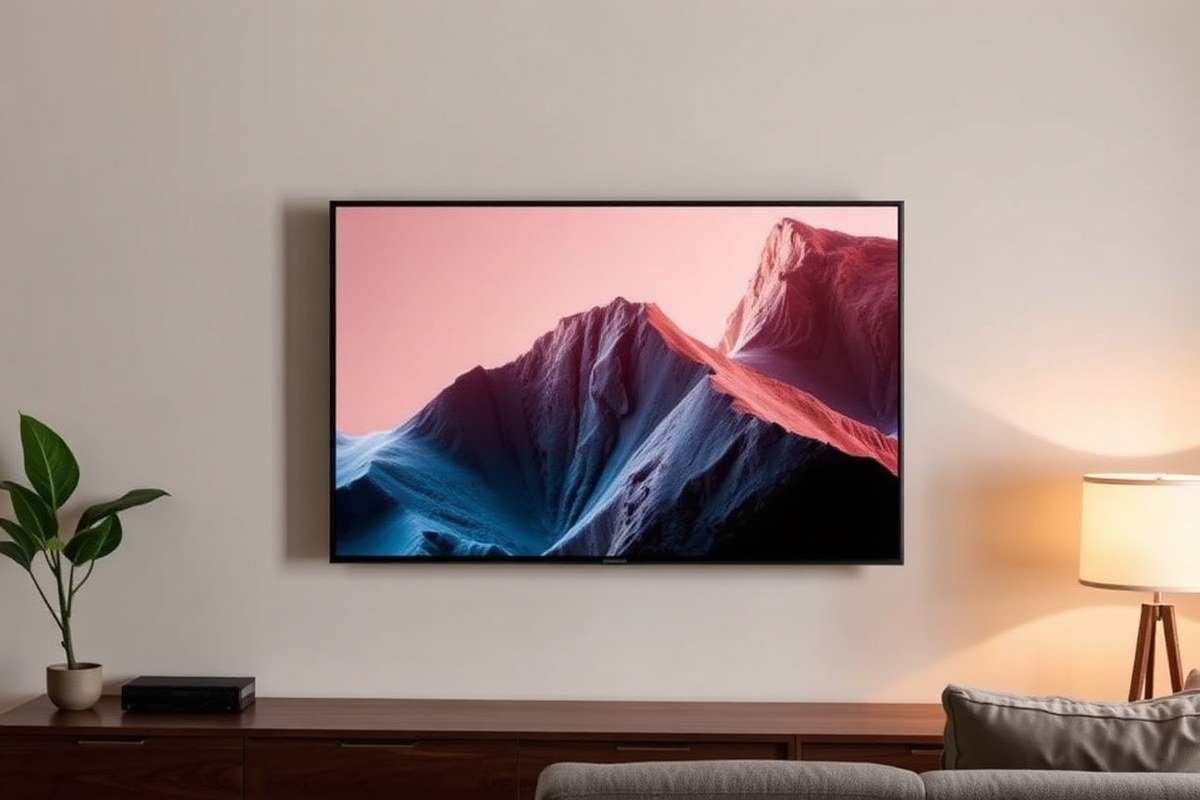
Knowing How to add art to Frame TV starts with uploading high-resolution images that fit the screen size exactly. Use files that are at least 3840 pixels wide and 2160 pixels tall for the best display. Begin by selecting digital art that matches these dimensions to ensure the TV shows all available mat options and looks like a real framed picture.
Key Takeaways
- Choose art files with a resolution of exactly 3840 x 2160 pixels to unlock all mat options on your Frame TV.
- Use the slim-fit wall mount for your Frame TV to keep it flush against the wall, improving the picture frame illusion.
- Upload up to three art images at once to create and customize mattes directly on your Frame TV.
- After uploading, consider turning off Smart Captions, Alexa hints, and the Date & Clock to keep the art display clean.
- Find affordable digital art pieces online priced between $2 and $6 to expand your Frame TV art collection.
- Follow select social media accounts to receive codes for free or discounted digital art designed for the Frame TV.
How to Upload Art to Your Samsung Frame TV
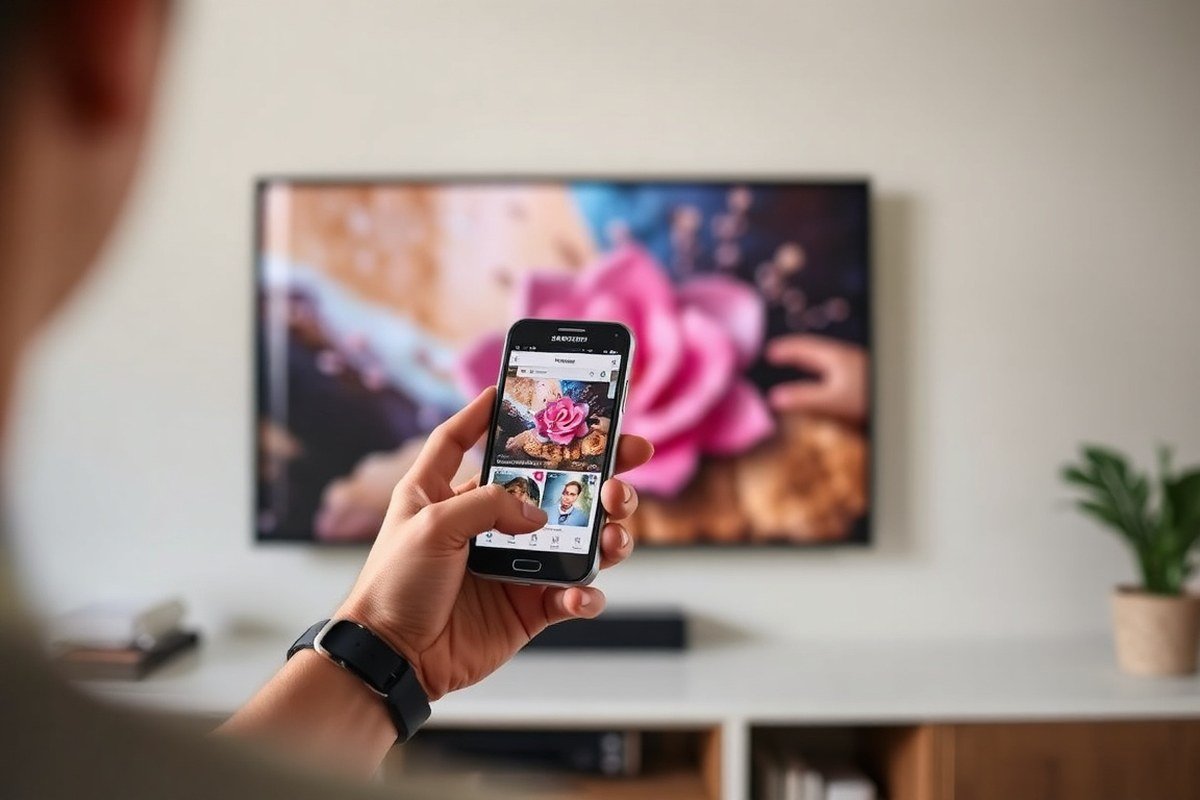
Adding art to your Samsung Frame TV can be done primarily through the Samsung SmartThings app or by using a USB thumb drive. The SmartThings app lets you upload images directly from your phone, offering a convenient and wireless method. Although this app is required for changing the art regularly, you can bypass it by using a USB drive if you prefer manual uploads or face connectivity issues. Apple users have an additional option through AirPlay, which enables quick sharing of images from an iPhone to the Frame TV.
When using the SmartThings app, you can upload photos saved on your phone, select them in the app, and transfer them directly to the TV. Keep in mind that while the app allows basic cropping, it does not yet support all matte options, such as “no mat.” USB uploads work by saving the image files on the thumb drive, plugging it into the USB port on the One Connect Box, and then importing the images to the TV. AirPlay provides a fast, wireless alternative for Apple owners by mirroring images from phone to screen without the need for a USB or extra app setup.
- Open the SmartThings app on your phone and select your Frame TV from your list of devices.
- Navigate to Art Mode and scroll to the bottom to find the option Add Your Photos+.
- Select the images you want to upload from your phone’s gallery or files and confirm the selection.
- Tap “Add” to send the photos to your Frame TV, where they will appear in your art collection.
- Alternatively, save your desired art files on a USB thumb drive formatted for your TV, plug it into the USB port on the One Connect Box, and follow the on-screen prompts to import.
- For Apple users, open your photo on your iPhone, tap the Share button, select AirPlay, and choose your Frame TV to display the image instantly.
Preparing and Resizing Art Files for the Frame TV
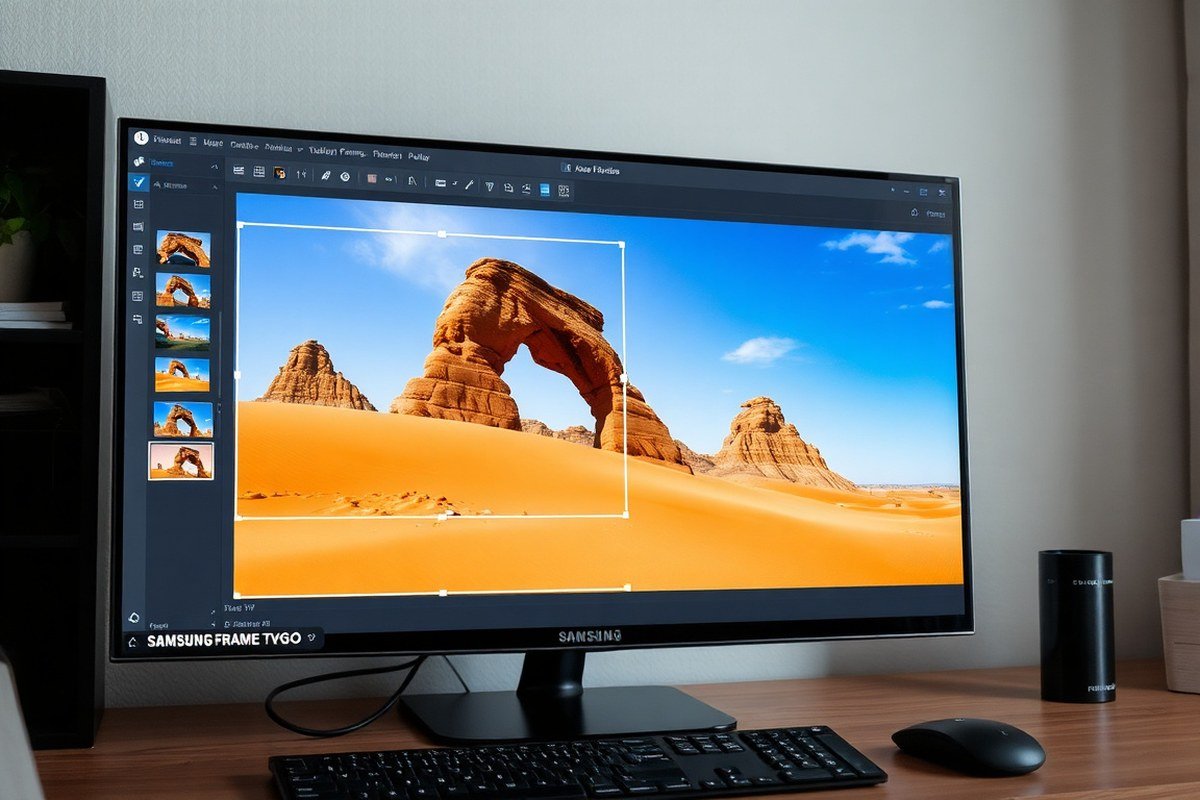
To get the best display on your Samsung Frame TV, your digital art needs to be sized exactly to 3840 pixels wide by 2160 pixels tall. This matches the TV’s 4K resolution and maintains the ideal 16:9 aspect ratio. Using the correct dimensions prevents distortion or loss of image parts and ensures the TV can show all mat options, including the preferred full “no mat” view. When images aren’t sized properly, the TV automatically adds mats or crops the image, which might not showcase your art as intended.
You can resize your images easily using free online tools like Canva or PicMonkey. Start by uploading your image, then crop it using the 16:9 aspect ratio preset. After cropping, adjust the canvas or export settings to exactly 3840 x 2160 pixels. Make sure to save your file as a JPG, which the Frame TV accepts widely and supports good quality without large file sizes.
- Open your image in Canva, PicMonkey, or a similar free app.
- Use the crop tool and select a 16:9 ratio to maintain proper proportions.
- Resize the cropped area to 3840 x 2160 pixels.
- Export the image as a JPG for optimal compatibility.
- Save files in a dedicated “Frame TV” album on your phone or computer.
- Avoid enlarging small images too much to prevent pixelation.
- Check dimensions again before uploading to ensure exact sizing.
Confirming your art files meet these specifications prevents unwanted stretching or black borders. Resizing takes just a few minutes, and these steps ensure your photos or downloaded art files look crisp, clear, and perfectly framed on your Samsung Frame TV’s screen.
Finding and Choosing Digital Art for Your Frame TV
Finding digital art designed for your Frame TV involves exploring both free and paid sources tailored for the TV’s 4K resolution and aspect ratio. Popular repositories include the National Gallery of Art and The Public Domain Print Shop, which offer thousands of free vintage artworks in the public domain. These pieces are typically high resolution and require no licensing fees, making them a great starting point. Paid options, like collections on Etsy or Samsung’s Art Store subscription, often feature curated sets formatted for the Frame TV, though some lack clear artist attribution.
Choosing the best art depends on your room’s decor and the TV’s display format. Horizontal artworks usually fit the 16:9 Frame TV screen perfectly, while vertical pieces should be at least 3840 pixels wide to crop without losing definition. Consider styles that complement your space’s colors and mood, abstract art and classic paintings are popular choices. Here is a simple comparison table of typical free vs. Paid digital art options for your Frame TV:
| Aspect | Free Art | Paid Art |
|---|---|---|
| Cost | No charge | $5 to $30 per collection or subscription fees |
| Source | Public domain sites, museum archives | Curated online stores, Samsung Art Store |
| Resolution | Varies; many 4K or higher | Optimized for Frame TV’s 4K display |
| Artist info | Usually credited if known | May be anonymous or unknown |
| Selection | Wide but requires hunting | Convenient and curated |
- Use public domain art for no-cost, authentic vintage pieces
- Explore Etsy for affordable themed collections
- Check YouTube channels offering art loops and displays for free viewing
- Prioritize 4K resolution images for clear display on large screens
- Match art style and theme to your room’s lighting and furniture
- Remember horizontal formats generally work best; crop vertical images carefully
- Use Samsung’s built-in Art Store for easy access but factor in subscription costs
Deciding between public domain and original creations hinges on your taste and budget. Public domain art offers historical charm and zero licensing fees but requires searching to find pieces that fit. Original or paid artwork often includes modern themes or exclusive pieces suited for specific decor, though at a cost. Always verify image resolution and file format to ensure crisp, vibrant display on your Frame TV.
Customizing Art Mode Settings and Matte Options
The Frame TV provides a variety of options to customize how your displayed art looks. You can choose from seven mat styles, including “No Mat” for a clean, art-gallery appearance, and “Modern Mat, Auto,” which automatically adjusts to complement your artwork. Adjusting brightness between 40 and 60 percent helps maintain a natural look, balancing visibility and softness while matching your room’s lighting. Removing overlays such as captions, clocks, or notifications creates an uninterrupted gallery experience.
To customize mats and brightness, you’ll use the SmartThings app connected to your Frame TV. Accessing these controls lets you tailor the presentation of your digital art for the best effect. Precise mat selection and brightness adjustments can make your Frame TV art feel like real framed pieces on your wall.
- Open the SmartThings app and select your Frame TV device.
- Tap on ‘Art Mode’ to enter the customization settings.
- Choose your preferred mat style from the seven available options: “No Mat” for authentic simplicity, “Modern Mat, Auto” for an adaptive border, or other mat types to suit your decor.
- Adjust the brightness slider to a level between 40 and 60 percent to achieve a natural, non-glaring display that fits your room’s ambient light.
- Modify the color temperature if desired to warm or cool the art presentation, improving realism.
- To remove overlays like clocks or captions, press ‘Select’ on your OneRemote while in Art Mode and disable these display features.
- Confirm your settings, then enjoy your customized art display that mimics a gallery atmosphere without distractions.
Improving Your Frame TV with Physical Frames
You can definitely use physical frames, or bezels, with your Samsung Frame TV to amplify its look and create a more authentic art display. Samsung offers official Deco TV Frames designed specifically to snap onto the edges of your Frame TV. These official frames come in various colours like white, black, and beige, with finishes such as matte or wood grain. They are lightweight, easy to install, and match the dimensions of the TV precisely, ensuring a flush fit that does not interfere with the screen or mounting.
Installation is straightforward. First, power off and unplug your TV. Next, align the Deco Frame with the TV edges starting at one corner and gently press along the sides until it clicks into place. These frames use clips rather than adhesive, making it possible to swap them out or remove them without damage. When you choose to upgrade the frame, simply reverse the steps by gently pulling the frame away.
Third-party frame options are also available. These often come as decorative glue-on surrounds or magnetic sleeves. They can offer unique finishes like gold or brushed metal, but installation and fit can vary depending on your Frame TV model, so check specifications carefully. Some third-party frames might require adhesive strips or more precise measuring, which could be tricky if you plan to move or replace the frame regularly.
In terms of cost, official Samsung Deco Frames typically range from $140 to $200 depending on size and finish. Third-party frames might start around $50 but can go up to $250 for premium materials. Budget frames may compromise on fit or durability, so weigh the options based on how permanent and polished you want the setup. Adding a physical frame turns the TV into a stylish piece of wall art, complementing your room’s decor and making the digital art feel more like a real painting or photograph. For best results, choose a frame that matches your decor style and offers easy installation to avoid hassles with resizing or moving your TV later.
Troubleshooting Common Issues When Uploading or Displaying Art
Art may not display fully or appear cropped if the image file isn’t sized right. Check that your image matches the Frame TV’s recommended resolution, typically 3840 x 2160 pixels. Images with different aspect ratios can cause unintended cropping or black bars. Using JPG or PNG formats usually ensures compatibility.
Mats might not show up if the image file format or size isn’t supported, or if an app glitch is preventing proper loading. Try re-uploading the artwork via the SmartThings app or through USB, making sure your TV firmware and app are up to date. Sometimes the app connection can fail due to weak Wi-Fi or device pairing issues. Here is a checklist to troubleshoot common display problems:
- Verify image file format is JPG or PNG and resolution is near 3840 x 2160 pixels
- Restart the SmartThings app and your mobile device
- Power cycle your Frame TV by unplugging it for 30 seconds
- Reconnect your TV to a strong Wi-Fi network
- Resave and re-upload art files through USB or the app
- Update Frame TV firmware and the SmartThings app to the latest version
- Check for any app permissions blocking access to photos or media
Following these steps typically fixes mismatched art display and mat issues. Persistent app errors might require uninstalling and reinstalling SmartThings or contacting Samsung support. Always ensure your files are saved in correct dimensions and formats before uploading. These efforts take only minutes but prevent frustrating cropping or blank art screens.
Setting Up Art Display Timers and Power Options
Scheduling when your Samsung Frame TV displays art helps you save energy and keeps the visuals fresh. The TV’s Art Mode includes a Sleep After setting that automatically turns off the art display after 1, 2, 4, or 6 hours, reducing unnecessary power use. You can also use motion sensors to activate Art Mode only when someone is in the room, further cutting electricity costs and screen wear.
To set times and motion sensor options, access the Art Mode menu through the OneRemote. Adjusting motion sensor sensitivity affects how quickly the TV responds to movement, which is useful if the room sees frequent traffic or periods of inactivity. Balancing display duration and sensor settings gives you control over convenience and energy efficiency.
- Press the Home button on your OneRemote, then select Art Mode from the menu.
- Navigate to Settings and find the Sleep After option.
- Choose a time limit (1, 2, 4, or 6 hours) after which the art display will turn off automatically.
- Go back to Settings and select Motion Sensor to enable or disable it.
- Adjust the sensor sensitivity to low, medium, or high, depending on how often people pass near your TV.
- Set a schedule under Display Schedule if you want the TV to turn Art Mode on and off at specific times of the day.
- Press the Exit button to save and return to Art Mode.
Using timers and sensors reduces your monthly electricity use by powering down the TV when no one is watching. Too high sensitivity can cause the screen to turn on from pets or minor motions, while too low may delay activation. Trying different settings helps find the best balance for your space.
Step-by-Step Action Plan to Add Art to Your Frame TV
Follow these steps in order to quickly start displaying art on your Samsung Frame TV and make sure everything looks just right.
- Before you start: Choose the digital art you want to display. Confirm the resolution fits the Frame TV’s recommended size (usually 3840×2160 pixels) to avoid distortion.
- Day 1: Prepare your art files by resizing them using photo editing software or an online tool. Check the file format is compatible, like JPEG or PNG.
- Day 2: Upload the art to your Frame TV via the SmartThings app or a USB drive. Verify the upload succeeded by previewing the image on the TV.
- Day 3: Customize the Art Mode settings and select your preferred matte style and brightness. Confirm these adjustments improve the display without washing out details.
- Week 1: Experiment with physical frame options if you want the look of a traditional art piece. Ensure the frame fits well and attaches securely without damaging the TV.
- After 2 weeks: Set up art display timers and power-saving modes to automate your Frame TV’s art presentation. Check that the TV powers on and off as scheduled and the art displays consistently.
- Ongoing: Troubleshoot any display issues like image flicker or upload failures by restarting the TV and reviewing file formats. Make adjustments until the picture quality is stable and clear.
Frequently Asked Questions
Can I Use Personal Photos as Art on My Samsung Frame TV?
Yes, you can add personal photos by selecting Add Your Photos+ in Art Mode. Make sure your images are high resolution and properly sized for the best display quality.
How Do I Organize My Digital Art on the Frame TV?
Organize your digital art by creating albums like the “Frame TV” album in the SmartThings app. This makes accessing and switching between art collections easier on your Frame TV.
What File Formats Are Supported for Adding Art to the Frame TV?
The Frame TV supports common image formats like JPEG and PNG. Use high-resolution images at least 3840 pixels wide for optimal display and compatibility.
Can I Share My Frame TV Art with Others?
Sharing art directly from your Frame TV isn’t supported, but you can share the original files or art download links with others through email or social media.
Is There a Limit to How Many Art Files I Can Store on the Frame TV?
Storage depends on the TV’s internal memory, but typically you can upload several albums. For heavy collections, manage your files through the SmartThings app to keep the TV running smoothly.
Key Points to Remember
You can now confidently add and customize digital art on your Samsung Frame TV for a beautiful, personalized display. Start by selecting one favorite piece and uploading it using the SmartThings app today. This simple first step transforms your TV into a dynamic art gallery that suits your style and space.